
English
Images
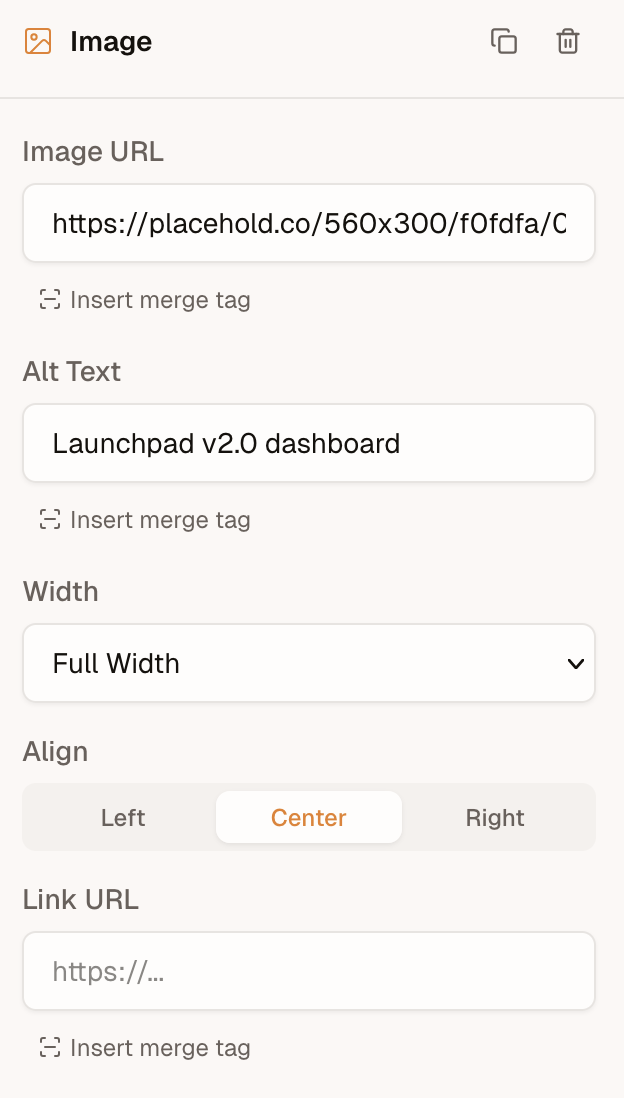
When a user adds an image block, the editor shows a text field where they can paste an image URL. The image block toolbar exposes fields for src, alt, width, align, and an optional linkUrl.
Browse and pick
A browse button appears alongside the URL input when either a media provider or onRequestMedia is configured.
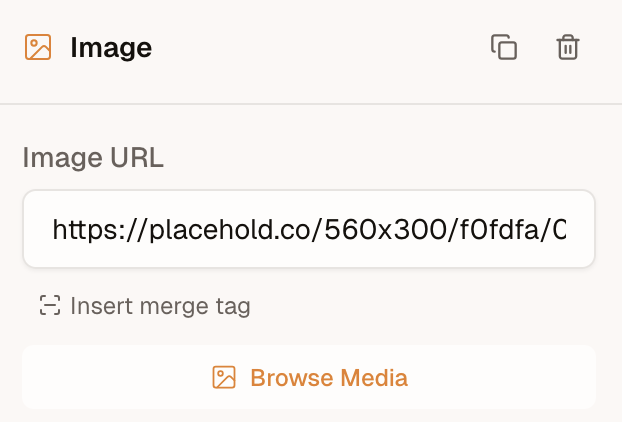
media opens the built-in library modal. onRequestMedia is a UI override (Bynder, Cloudinary widget, a host modal): the editor calls it instead of opening the library, and it wins when both are set. Return a MediaResult, or null if the user cancels. When alt is provided, the editor fills in the image's alt text.
ts
import { init } from '@templatical/editor';

const editor = await init({
  container: '#editor',
  async onRequestMedia() {
    // Open your own modal, file browser, or asset manager
    const image = await openMyMediaModal();
    if (!image) return null;

    return { url: image.url, alt: image.alt };
  },
});
A gallery of your own is the media key — see Media.
The type signature:
ts
interface MediaResult {
  url: string;
  alt?: string;
}

interface MediaRequestContext {
  /** Media categories the editor is asking for (e.g. `['images']`). */
  accept?: MediaCategory[];
  /**
   * Files dragged directly onto an image block or field. Present only for
   * drag-and-drop requests; absent when the user clicks "Browse Media".
   */
  files?: File[];
}

type OnRequestMedia = (context?: MediaRequestContext) => Promise<MediaResult | null>;
Drag and drop to upload
Users can drag an image file from their computer straight onto an image block (empty or filled), the sidebar image field, or a custom block's image field.
With onRequestMedia, the editor calls that handler with the dropped file in context.files:
ts
const editor = await init({
  container: '#editor',
  async onRequestMedia(context) {
    // A file was dropped — upload it and return its hosted URL.
    if (context?.files?.length) {
      const url = await uploadToMyBackend(context.files[0]);
      return { url };
    }

    // No file — the user clicked "Browse Media". Open your picker.
    const image = await openMyMediaModal();
    return image ? { url: image.url, alt: image.alt } : null;
  },
});
With a media provider and no callback, drop goes to provider.create({ file, templateId? }) when create is a function. create: false hides the drop affordance: the library is still browsable.
A few notes:
- One file per drop.
filesis an array for forward-compatibility, but the editor currently sends a single file (files[0]). - Images only. The editor pre-filters dropped files to image MIME types before calling you.
- No picker, no drop. Without
onRequestMediaand without amediaprovider whosecreateis a function, the drop affordance doesn't appear and drops are ignored. - Don't return a
blob:URL.URL.createObjectURL(file)is session-local and breaks export. Upload the file and return a durable URL (or adata:URL).
With a media provider whose create is a function, dropped files upload through that provider — no onRequestMedia needed. A custom handler still takes precedence.
Display-only URL resolution
Some integrations store canonical image references that aren't directly displayable — for example, an offline-capable app whose templates reference images by plain file name (logo.png), displayable only via ephemeral blob: URLs created from local storage. onRequestMedia covers the media-browser path, but when a user types or pastes such a value into the src input, the canvas has nothing to show.
The resolveImageUrl callback closes that gap. It maps a src value to a preview URL for the canvas only — the content model keeps the canonical value, and toMjml() exports it untouched:
ts
const editor = await init({
  container: '#editor',
  async resolveImageUrl(src) {
    const file = await myFileStore.lookup(src);
    return file ? URL.createObjectURL(file) : null;
  },
});
The type signature:
ts
resolveImageUrl?: (src: string) => string | null | Promise<string | null>;Return the preview URL, or null (or the input value) to use the src as-is.
How the editor calls it:
- Once per committed value. Typing in the src input is debounced, so partial values (
lo,logo.p, …) never reach your resolver. - Cached per src for the editor instance's lifetime — the same src in several blocks resolves once.
- Failures fall back gracefully. A thrown error or rejected promise is cached as "use as-is"; the editor won't retry the same src. Note this also holds for transient failures: a src that failed to resolve stays unresolved until the editor is re-initialized. A hook to re-trigger resolution may be added in a future release.
- Merge-tag srcs are skipped. A src like
{{product.image}}is never passed to the resolver; itsplaceholderUrl(if set) is resolved instead. - Video thumbnails are covered too. An explicit video
thumbnailUrl(and a video block'splaceholderUrl) resolves the same way. Thumbnails auto-derived from a YouTube/Vimeo URL are already real URLs and are never passed to the resolver. - Display-only, by design. Unlike returning a
blob:URL fromonRequestMedia(which would end up in the export — see above), a URL fromresolveImageUrlnever enters the template content.
Image Block Properties
The ImageBlock type defines all configurable properties:
| Property | Type | Description |
|---|---|---|
src | string | Image source URL |
alt | string | Alt text for accessibility |
width | number | 'full' | Image width in pixels, or 'full' for 100% |
height | number (optional) | Image height in pixels. Absent derives it from the width |
align | 'left' | 'center' | 'right' | Horizontal alignment |
borderRadius | number (optional) | Corner radius in pixels. Absent or 0 means square corners |
decorative | boolean (optional) | Hides the image from screen readers and sends an empty alt |
linkUrl | string (optional) | Wraps the image in a link |
linkOpenInNewTab | boolean (optional) | Opens the link in a new tab |
placeholderUrl | string (optional) | Design-time preview image when src uses a merge tag |
Height
height is optional, and leaving it out is usually right: the height is then derived from the width and the image keeps its aspect ratio. Set it when the layout needs a fixed box -- a banner slot of a known size, or a row of images that must line up.
Setting both width and height stretches the image to that box. It does not crop, because object-fit is unsupported in Outlook and most email clients, so the editor canvas stretches identically rather than promising a crop the inbox won't deliver. Match the ratio of the source image, or resize the asset before uploading it.
Corner radius
borderRadius rounds the image's corners, in pixels. Omitted or 0 leaves them square, which is what every existing block gets.
To render a circular avatar or portrait, give the block a square source image and a radius of at least half its rendered size: a 240px square needs 120, and any larger value (999 is the usual shorthand) resolves to the same circle. A non-square image rounds to an ellipse, since there is no cropping step -- see Height above for why.
Support is good but not universal. Apple Mail, iOS Mail, Gmail and Outlook.com honour it; Outlook on Windows ignores it and shows square corners. Treat it as a progressive enhancement rather than something a layout depends on.
Placeholder URL
When the src field contains a merge tag (e.g., {{product.image}}), the actual image won't render in the editor. Use placeholderUrl to provide a placeholder image in the editor. This value is not included in the exported output.
Best practices
- Use absolute URLs -- Relative paths won't resolve in email clients. Always use
https://URLs. - Prefer PNG or JPG -- SVG and WebP have limited email client support. Use PNG for graphics with transparency, JPG for photos.
- Keep file sizes reasonable -- Large images slow down loading for recipients.
- Always set alt text -- Many email clients (especially Outlook) block images by default. Recipients see the alt text until they choose to load images.
- Set explicit width -- Email clients may render images at their native size if no width is specified, breaking your layout on small screens.
- Leave the height out unless you need it -- Width alone keeps the aspect ratio. A height that doesn't match the source ratio stretches the image in every client.